Overview
PinGate adds a Registration PIN field to your sign-up form. Nobody can create an account without a valid PIN, and you decide who gets one. Members who already have an account sign in as usual.
Highlights
- PIN manager – create your own PINs or up to 100 random PINs at a time, and turn any of them on or off.
- Limits – total sign-ups, sign-ups per day, a start date and an expiry date for each PIN, plus daily limits for the whole site.
- No way around it – the check runs on the server for the sign-up form, social sign-up and the API.
- Protection against guessing – too many wrong PINs locks that IP address for a while.
- Activity – see who registered with which PIN, wrong attempts and lockouts.
- Built for Nova – the field matches every Nova sign-up design, in light and dark mode, on phone and desktop.
Perfect For
- Private betas and invite-only launches
- Company, school and club communities
- Partners and campaigns, each with their own PIN and limit
- Stopping waves of fake sign-ups
PinGate installs in about 5 minutes. Follow the Installation guide.
System Requirements
- Sngine 5 with the Nova theme. Other themes are not supported.
- PHP 8 or newer.
- Access to phpMyAdmin or MySQL to import one file.
- SSH or a hosting Terminal for one command. No SSH? A one-time Cron Job works too.
Installation Guide
The same steps are in How to install PinGate.txt inside the package. Documentation.html in the package and the Documentation button in AdminCP › PinGate both open this page.
Step 1 – Upload the files
Unzip PinGate-for-sngine.zip. Upload everything inside the upload/ folder to your Sngine root (the folder that contains admin.php), keeping the folder structure. Do not upload the upload folder itself.
includes/pingate.php
includes/pingate/admin.php
includes/pingate/install.sql
includes/pingate/patch.php
includes/ajax/admin/pingate.php
content/themes/nova/templates/admin.pingate.tpl
Step 2 – Import the database
- Open phpMyAdmin and select your Sngine database.
- Go to Import and choose
includes/pingate/install.sql. - Click Go.
It adds the PinGate tables and default settings. It does not touch your members or content, and it is safe to run more than once.
mysql -u DBUSER -p DBNAME < includes/pingate/install.sqlStep 3 – Connect PinGate to Sngine (required)
A small tool adds the AdminCP page and menu link, the PIN check and the PIN field. It checks every file first, keeps a backup of each changed file in content/backups/pingate/ and clears the template cache.
With SSH or your hosting Terminal, from your Sngine root:
php includes/pingate/patch.php --check
php includes/pingate/patch.php
The first command only previews: every line should say PENDING or OK. The second applies: every line should say PATCHED or OK, then "Done." A file that says FAILED is not changed.
No SSH? Add a Cron Job in your hosting panel that runs every minute:
php /full/path/to/your/sngine/includes/pingate/patch.php > /full/path/to/your/sngine/content/backups/pingate-result.txt 2>&1Wait two minutes and delete the Cron Job. Open content/backups/pingate-result.txt: it should end with "Done." Then delete that file.
The tool can't be opened from a web browser, and running it again is safe.
Step 4 – Create your PINs
- Open AdminCP › PinGate.
- Under Add PINs, enter a name, for example "Beta testers".
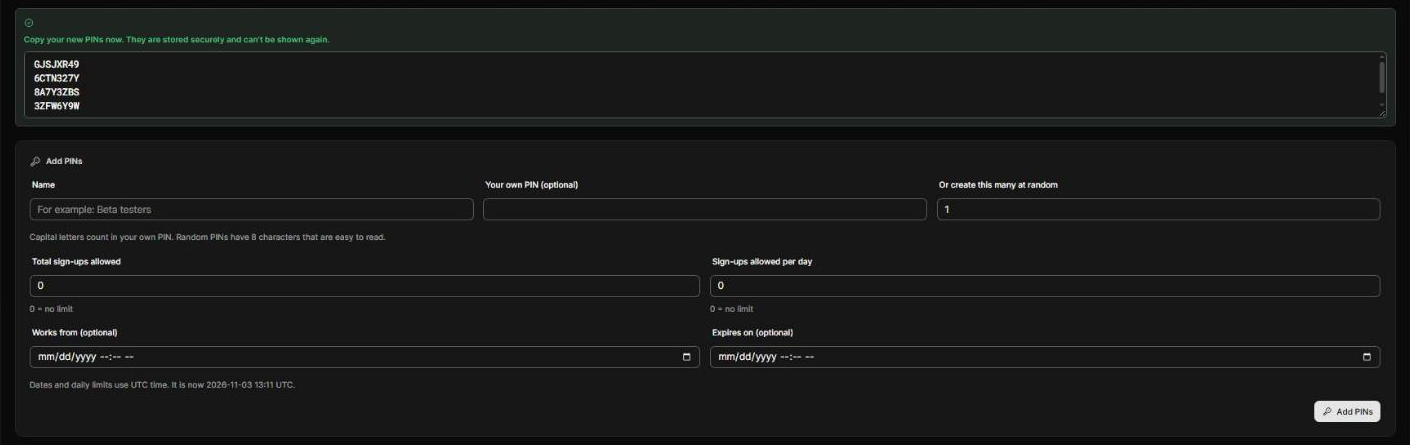
- Type your own PIN (4 to 64 characters; capital letters count), or leave it empty and choose how many random PINs to create.
- Optional: set limits.
- Press Add PINs, then copy your new PINs. They are shown only this once.
Step 5 – Turn it on
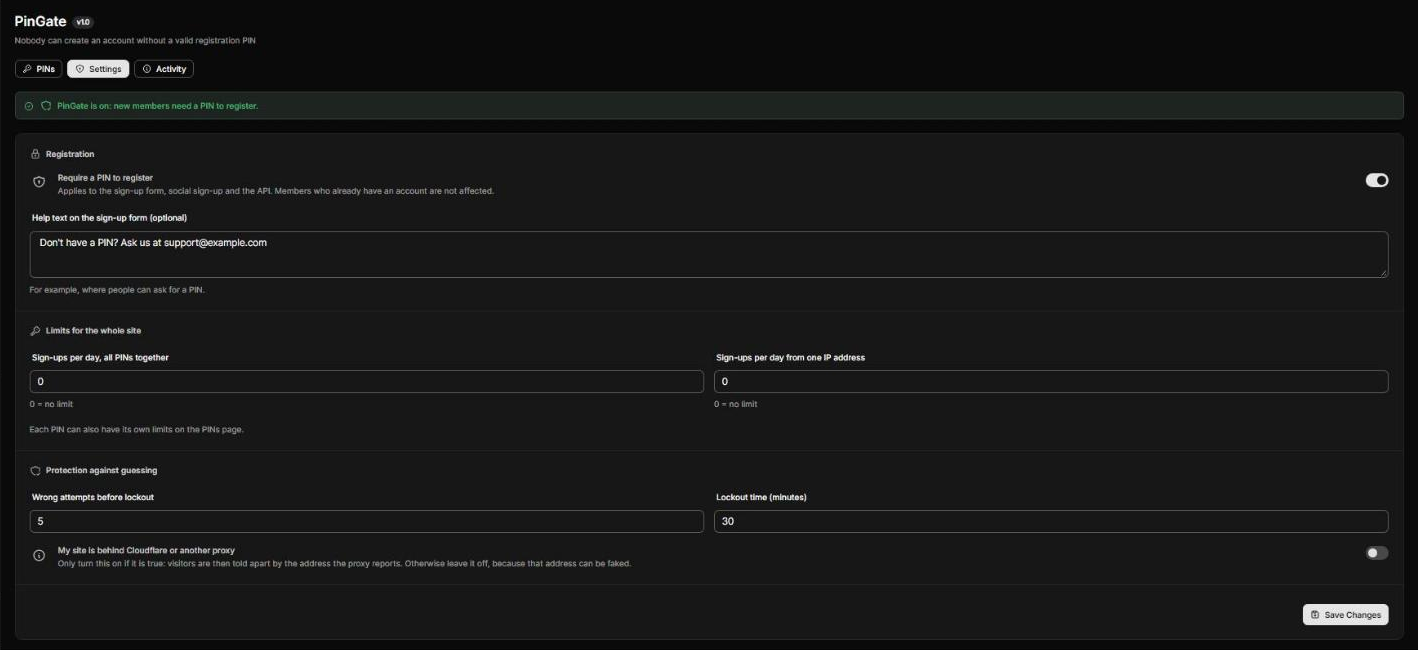
- Open AdminCP › PinGate › Settings.
- Switch on Require a PIN to register.
- Optional: add help text, for example where people can ask for a PIN.
- Press Save Changes.
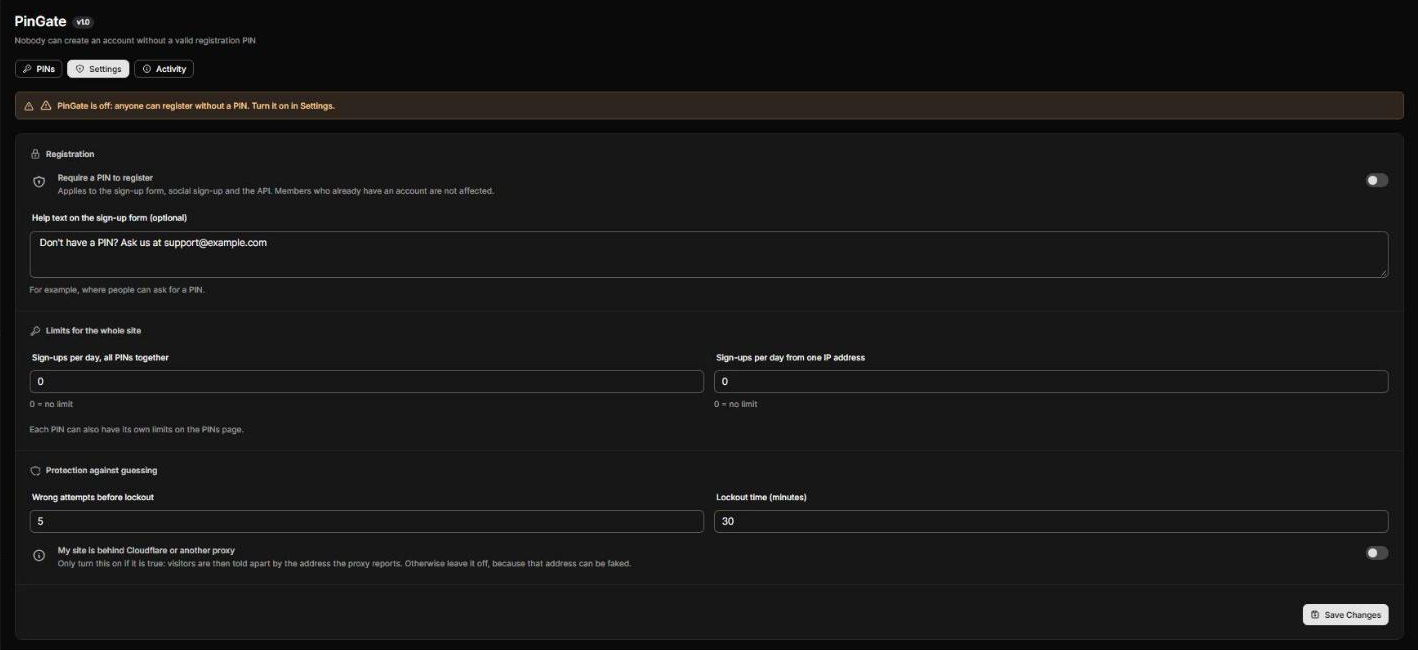
PinGate stays off until you do this. See Enabled / Disabled.
Step 6 – Check that it works
- Open your site's
/signuppage in a private (incognito) window. You should see the Registration PIN field. - Fill in the form with a wrong PIN and press Sign Up. If more fields appear (Sngine shows them after the first press), fill them in and press Sign Up again. You should see "The registration PIN is not correct".
- Do the same with a correct PIN. The account is created as usual.
- Open AdminCP › PinGate › Activity. The new member is listed with the PIN used.
Enabled / Disabled
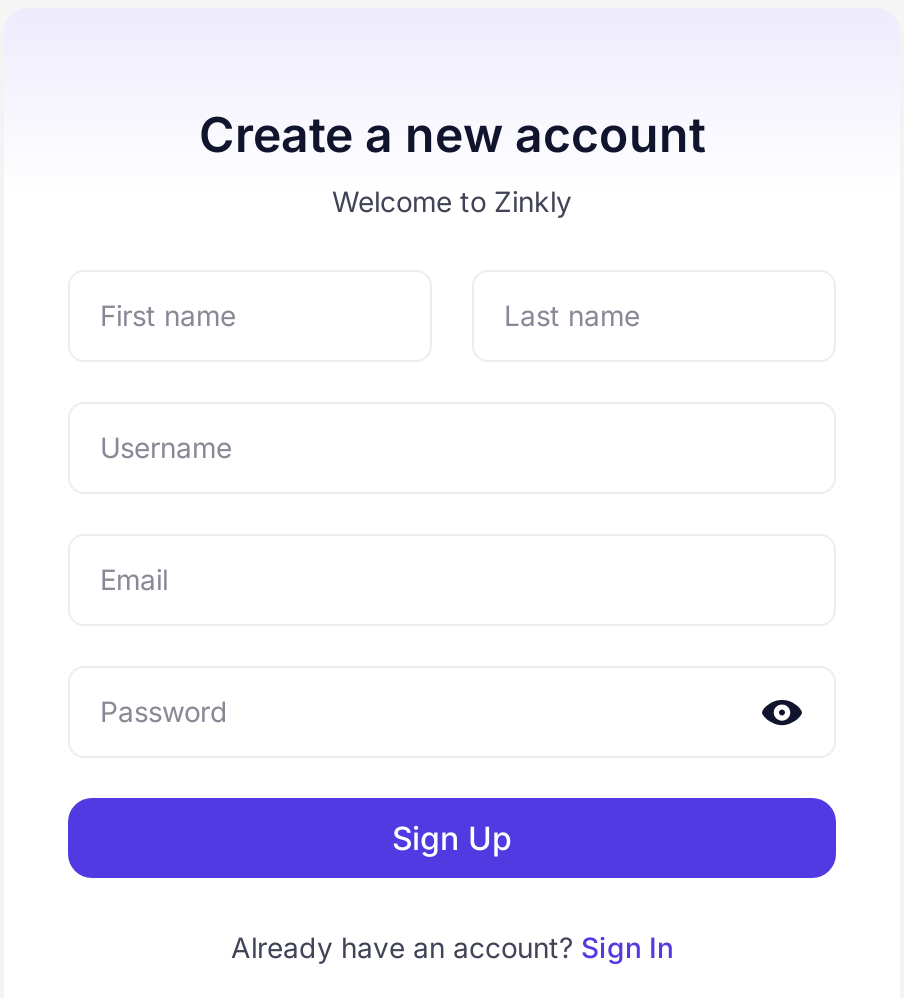
One switch controls everything: AdminCP › PinGate › Settings › Require a PIN to register. PinGate is disabled after installation. The banner at the top of every PinGate page always shows the current state.
| Enabled | Disabled | |
|---|---|---|
| PIN field on sign-up | Shown | Hidden |
| Sign-up without a valid PIN | Refused | Allowed, as normal Sngine |
| Social sign-up and API | Need a valid PIN | Work as normal |
| Sign-up limits | Applied | Not applied |
| Existing members signing in | Not affected | Not affected |
| Your PINs and history | Kept | Kept |
All Features
Everything PinGate 1.0 does, at a glance.
Unlimited PINs
Your own PINs, or up to 100 random ones at a time with easy-to-read characters.
On / off per PIN
Stop any PIN at once and bring it back later. A master switch turns PinGate on or off for the whole site.
Total sign-up limit
Decide how many accounts a PIN can create. Even when several people sign up at once, the limit holds.
Daily limits
Per PIN, for the whole site, and per IP address.
Start and expiry dates
Schedule a PIN for a campaign and let it end by itself.
Fair counting
A use is only counted when an account is really created. A form with a mistake in it costs nothing.
Lockout after wrong PINs
Choose the number of attempts and the lockout time. You can clear lockouts at any time.
Activity log
Who registered, with which PIN, when and from which IP address.
PINs stored securely
PINs are stored as a keyed hash, not as plain text, and are shown only once.
Help text
Tell people where to ask for a PIN, right under the field.
Covers every sign-up
The form, social sign-up and the API all go through the same check.
Nova design
Every Nova sign-up design, light and dark mode, phone and desktop.
PIN Manager
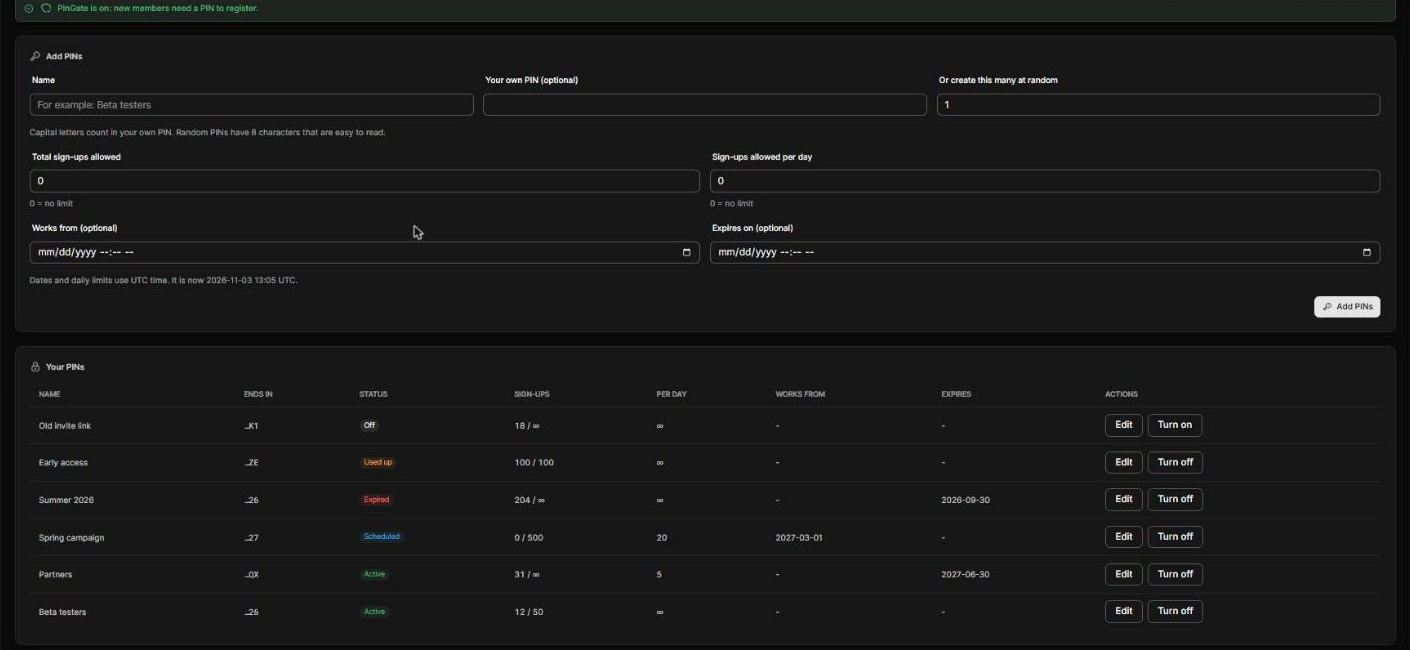
AdminCP › PinGate lists every PIN with its name, its last 2 characters, status and limits.
PIN status
| Status | Meaning | Works? |
|---|---|---|
| Active | Ready to use. | Yes |
| Scheduled | Its "Works from" date has not arrived. People see "This PIN is not active yet". | Not yet |
| Expired | Its expiry date has passed. People see "This PIN has expired". | No |
| Used up | It reached its total sign-ups. People see "This PIN has reached its limit". | No |
| Off | You turned it off. To visitors it looks like a wrong PIN. | No |
Edit, turn off, delete
- Turn off / Turn on – one click in the list.
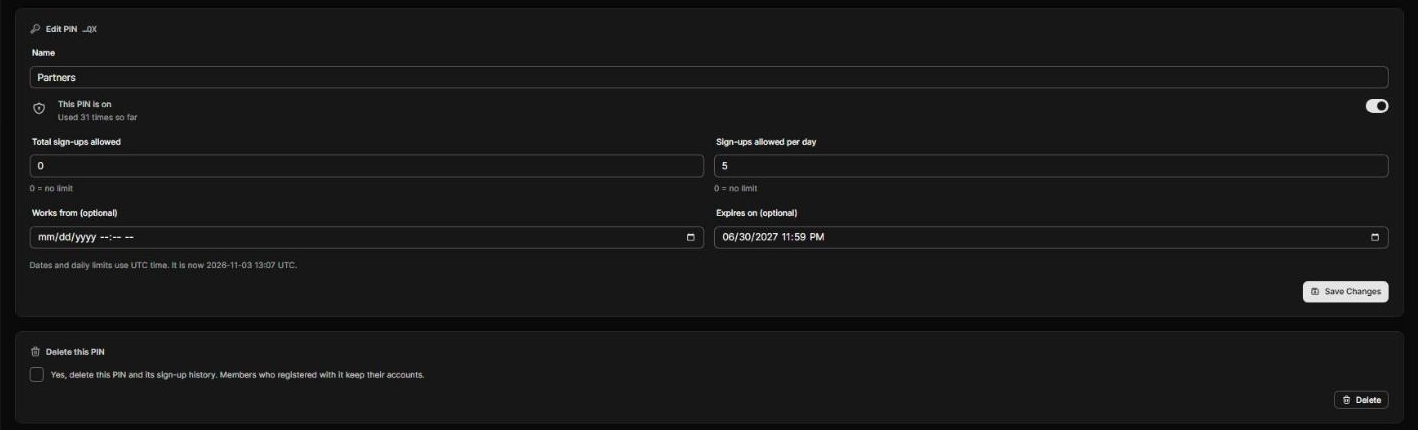
- Edit – change the name and limits at any time. The PIN itself can't be changed: create a new one instead.
- Delete – on the Edit page, tick the box and press Delete. This removes the PIN and its sign-up history. Members who registered with it keep their accounts.
Limits
| Limit | Where | What it does | Default |
|---|---|---|---|
| Total sign-ups allowed | Each PIN | How many accounts this PIN can create. | 0 = no limit |
| Sign-ups allowed per day | Each PIN | How many accounts this PIN can create each day. | 0 = no limit |
| Works from | Each PIN | The PIN does not work before this date. | Empty |
| Expires on | Each PIN | The PIN stops working on this date. | Empty |
| Sign-ups per day, all PINs together | Settings | A daily ceiling for the whole site. | 0 = no limit |
| Sign-ups per day from one IP address | Settings | Slows down one person making many accounts. | 0 = no limit |
| Wrong attempts before lockout | Settings | Wrong PINs allowed from one IP address (3 to 50). | 5 |
| Lockout time | Settings | Minutes that IP address stays locked (1 to 1440). | 30 |
Activity
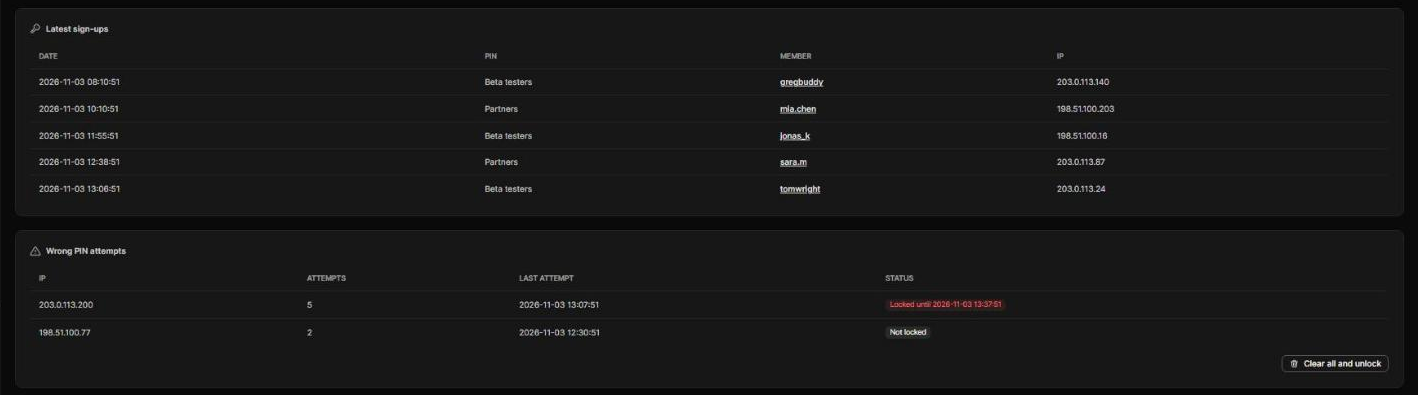
AdminCP › PinGate › Activity shows the latest 50 sign-ups and wrong PIN attempts. Clear all and unlock removes all lockouts at once.
The Sign-up Form
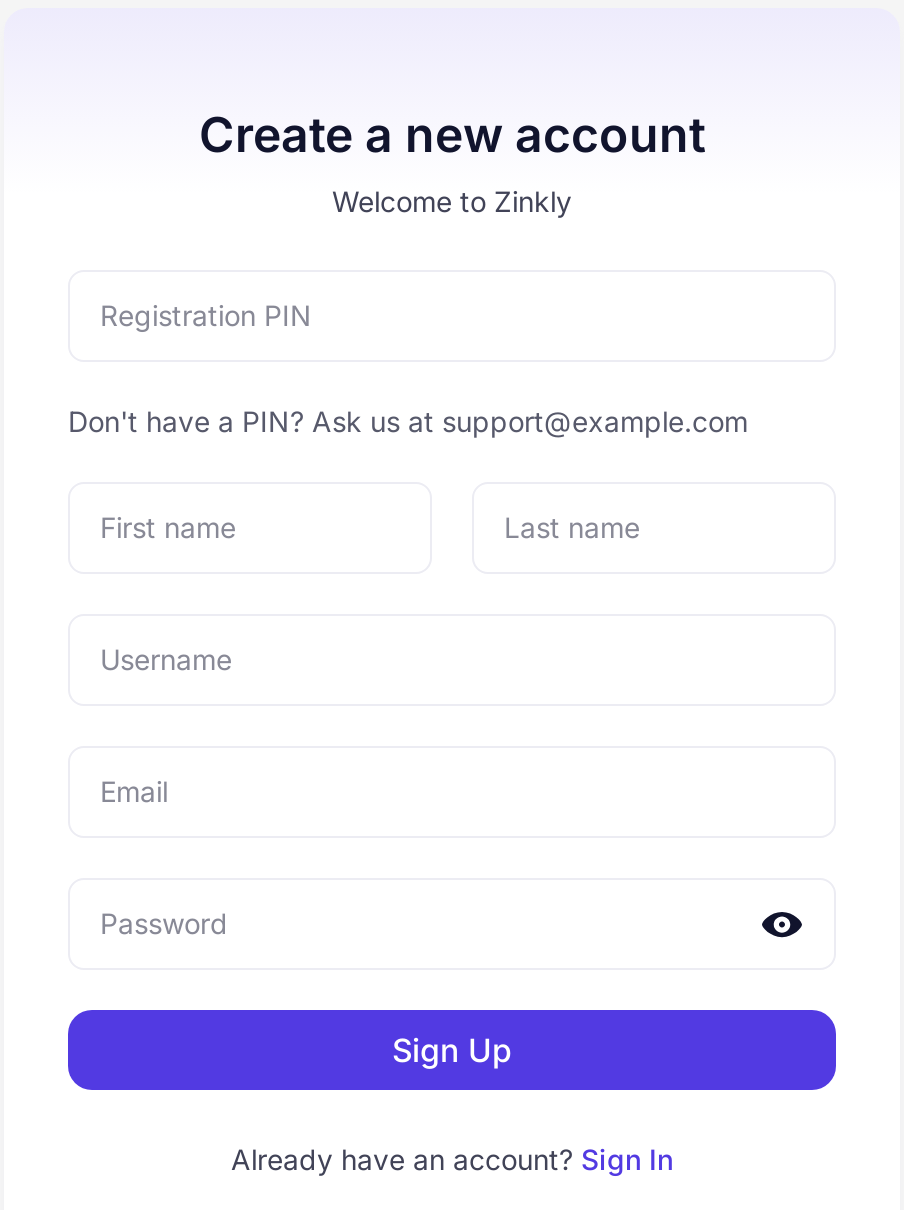
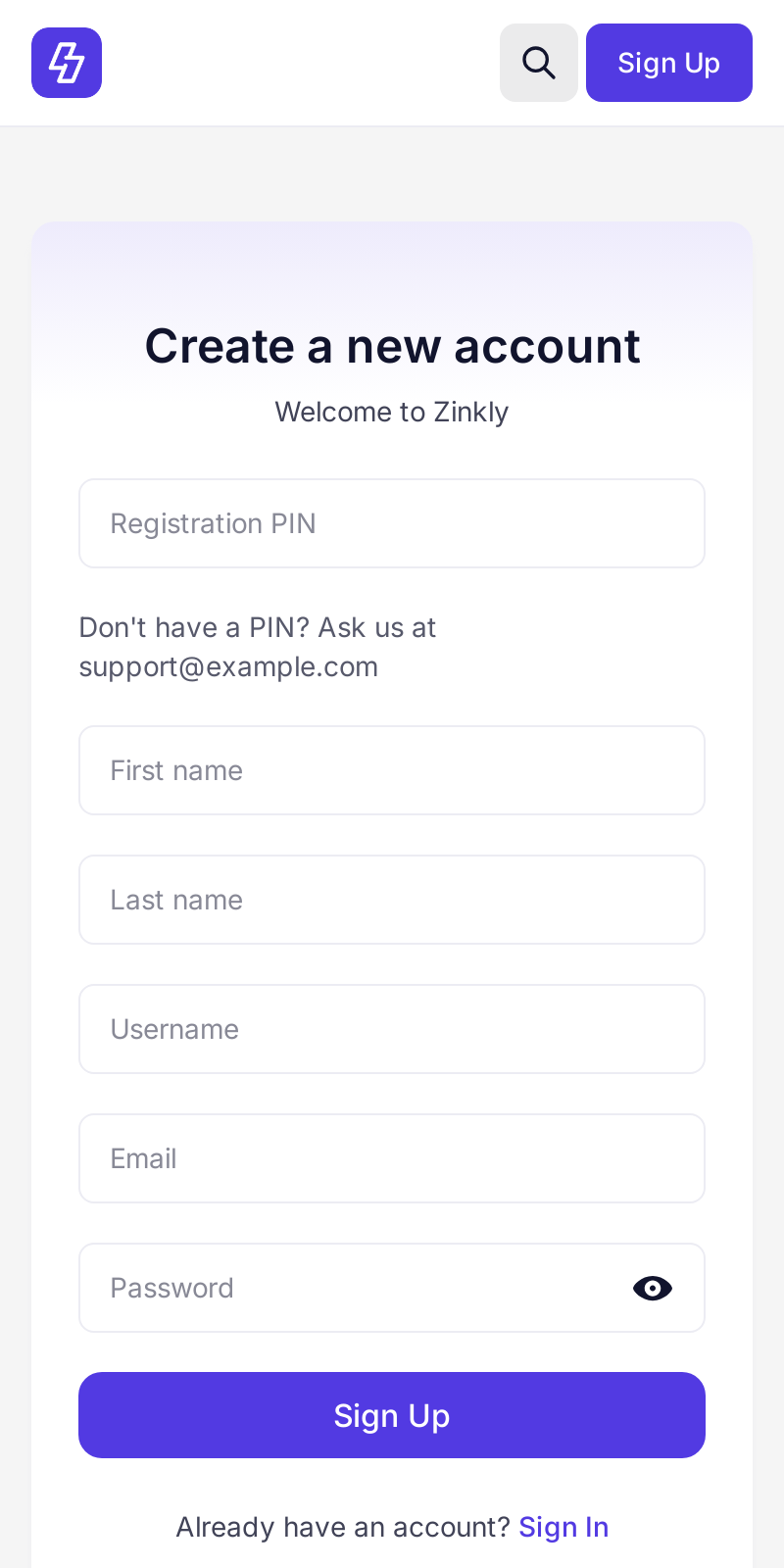
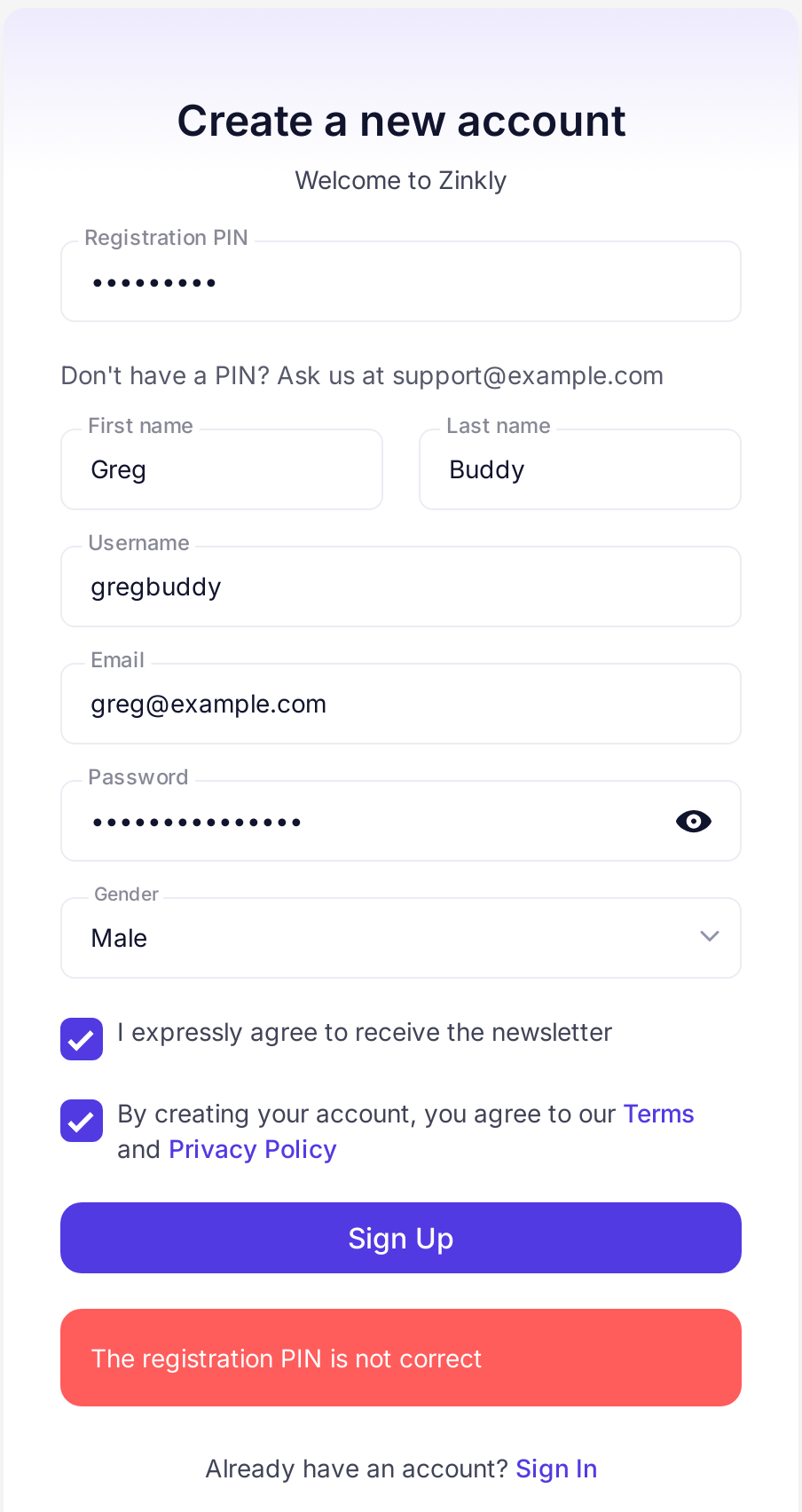
The PIN field is the first field on the form, styled to match your Nova sign-up design. Your help text appears right under it.
Messages people can see
| Message | When |
|---|---|
| Please enter the registration PIN | The field was left empty. |
| The registration PIN is not correct | A wrong PIN, or a PIN you turned off. This counts as a wrong attempt. |
| Too many wrong PIN attempts. Please try again later | This IP address is locked out. |
| This PIN is not active yet | Before its "Works from" date. |
| This PIN has expired | After its expiry date. |
| This PIN has reached its limit | Total sign-ups reached. |
| This PIN has reached its limit for today. Please try again tomorrow | The PIN's daily limit is reached. |
| Registration has reached its limit for today. Please try again tomorrow | A daily limit for the site or IP address is reached. |
| Registration is closed right now | PinGate is on but no PIN works, or Sngine registration is closed. |
PinGate's texts are in English. To translate them, add them to your language's translation file in content/languages/locale/, the same way as other Sngine texts.
Settings
| Setting | What it does |
|---|---|
| Require a PIN to register | The master switch. See Enabled / Disabled. |
| Help text on the sign-up form | Optional, up to 300 characters, shown under the PIN field. |
| Limits for the whole site | See Limits. |
| Protection against guessing | Wrong attempts before lockout, and the lockout time. |
| My site is behind Cloudflare or another proxy | Turn this on only if it is true, so visitors are told apart by the address the proxy reports. Otherwise leave it off, because that address can be faked. |
API & Apps
While PinGate is enabled, an app that registers through the Sngine API must send the PIN in the pingate_pin field with the other sign-up fields, or the sign-up is refused.
POST /apis/php/auth/signup
pingate_pin=YOUR-PINFiles & Database
Sngine files the connect tool changes
includes/class-user.php– the PIN check and counting in sign-up and social sign-up.admin.php– the AdminCP › PinGate page.content/themes/nova/templates/_admin_header.tpl– the AdminCP menu link.content/themes/nova/templates/__sign_form.default.tpl,.minimal,.summit,.terminal,.aurora,.retro,.studio,_sign_form.tplandsignup_social.tpl– the PIN field.
Database tables
pingate_pins– your PINs and their limits.pingate_uses– who registered with which PIN.pingate_attempts– wrong attempts and lockouts per IP address.pingate_secret– the key PINs are hashed with.
Settings are stored in system_options with names that start with pingate_.
Removing PinGate
To stop using it: switch off Require a PIN to register and save. Registration works as before.
To remove it completely:
- Restore the original Sngine files from
content/backups/pingate/. Each backup's name shows where it belongs and when it was made, with__in place of/. - Delete the files you uploaded in Step 1.
- In phpMyAdmin, delete the tables
pingate_secret,pingate_pins,pingate_usesandpingate_attempts.
Changelog
All notable changes to PinGate, newest first.
First release
LatestNovember 3, 2026Added
- Registration PIN field on every Nova sign-up design and on social sign-up
- PIN check on the server for the sign-up form, social sign-up and the API
- PIN manager: your own PINs or up to 100 random PINs at a time
- A name, a status and an on / off switch for each PIN
- Limits per PIN: total sign-ups, sign-ups per day, start date and expiry date
- Limits for the whole site: sign-ups per day, and sign-ups per day from one IP address
- A use is only counted when an account is really created
- Lockout per IP address after too many wrong PINs
- Activity page: who registered with which PIN, wrong attempts and lockouts
- Optional help text on the sign-up form
Frequently Asked Questions
Quick answers to the most common questions about PinGate.
Which Sngine version and theme do I need?
Sngine 5 with the Nova theme. Other themes are not supported.
Do my existing members need a PIN?
No. PinGate only asks for a PIN when a new account is created. Existing members sign in as usual.
How is this different from Sngine's invitation codes?
Invitation codes are a separate Sngine feature. PinGate PINs are created and managed by you in AdminCP, with limits, dates and an activity log. A PIN can be used by many people, up to the limit you set.
Can I see a PIN again after creating it?
No. PINs are stored securely and shown only once. The list shows the last 2 characters to help you recognise them. If you lose one, create a new one and turn off the old one.
Does a failed sign-up use up a PIN?
No. A use is only counted when the account is really created.
Someone is locked out. What do I do?
Press Clear all and unlock in AdminCP › PinGate › Activity, or wait for the lockout time to end.
Can I still add members from AdminCP?
Yes. PinGate only checks sign-ups from the form, social sign-up and the API.
What happens to my PINs when I disable PinGate?
They are kept, along with the history. Enable PinGate again and they work as before.
Troubleshooting
"You don't have the right permission to access this" on AdminCP › PinGate
Step 3 has not been run, or it did not finish. Run it and check that it ends with "Done." If you still see the message, make sure you are logged in with an administrator account. Moderators can't open this page.
FAILED in Step 3
That file is different from standard Sngine 5 with Nova, for example because of custom edits. Nothing was written to that file. Check that you use Sngine 5 and the Nova theme.
"php: command not found", or an error about str_starts_with
Your server's default PHP is missing or older than PHP 8. Use the full path of PHP 8 from your hosting panel instead of php.
No PinGate in the AdminCP menu, or no PIN field on /signup
Run Step 3 again and check its result. Then make sure PinGate is enabled and clear your browser cache.
"Registration is closed right now"
No PIN works at the moment. Add or turn on a PIN in AdminCP › PinGate. If the message stays, check Registration in your AdminCP settings.
One wrong guess locks out everyone
Your site is probably behind Cloudflare or another proxy, so all visitors look like one IP address. Turn on the proxy switch in Settings.
Sign-up from my app is refused
The app must send the PIN. See API & Apps.